



This help article explains how to manage association violations and bill tenants for related fines in MagicDoor.
Inside, you'll find:
- Navigating to the Association Violations section
- Adding a new violation with full details
- Editing violations and uploading supporting documentation
- Creating a lease bill tied to a violation fine
Use this article as a reference when recording HOA or association violations and charging tenants for associated fines.
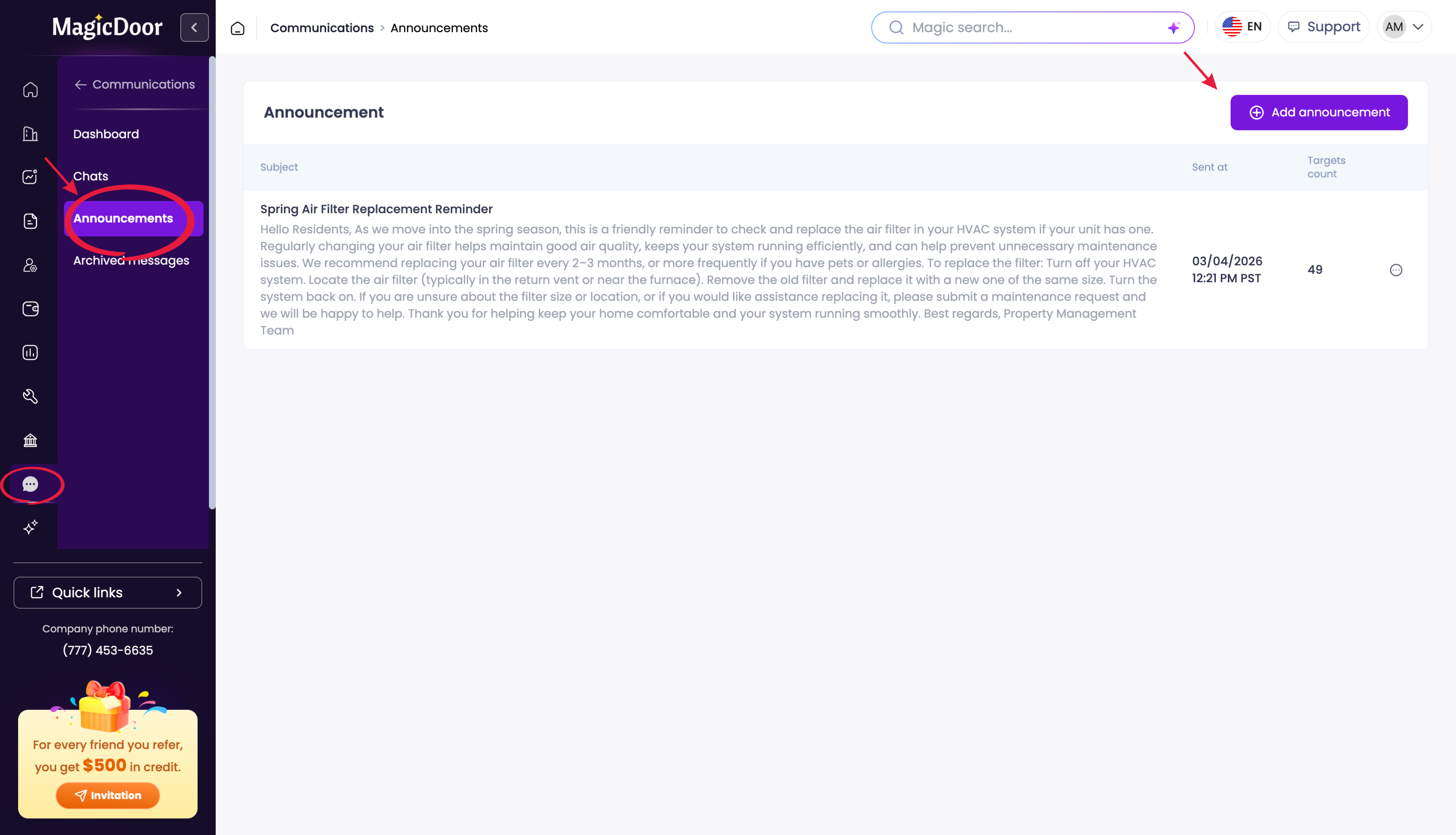
Step 1: Navigate to Association Violations
To begin, log into your account and locate the left-side navigation menu.
- Scroll down to Associations.
- Click Violations to view a list of all current violations.
Step 2: Add a New Violation
To record a new violation, click Add Violations in the upper right corner of the screen. Fill in the following information:
- Description: enter the details of the violation
- Target: select whether this applies to a Property, Unit, or Lease
- Details: input the Vendor, Violation Date, Violation Receive Date, and Fix By date
- Status & Reference: update the current status and add a Violation Reference Number if applicable
Once all fields are complete, click Add Association Violation to save.
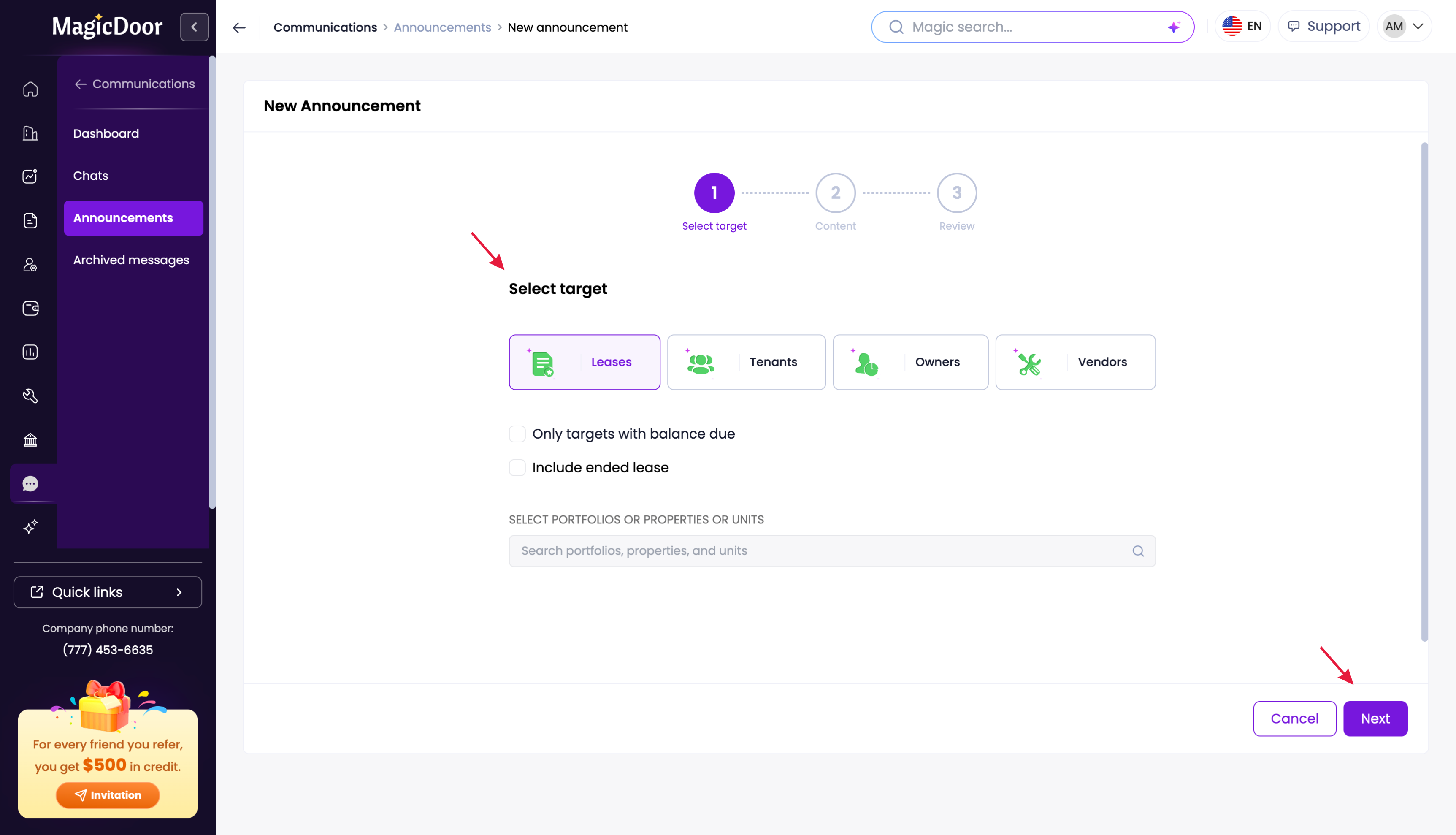
Step 3: Edit Details & Upload Files
After creating a violation, click on any individual item in the list to open its full details.
- To make changes, click Edit Violation, update the relevant fields, and press Submit.
- To attach supporting files, drag and drop documents directly into the violation record and press Submit to save them.
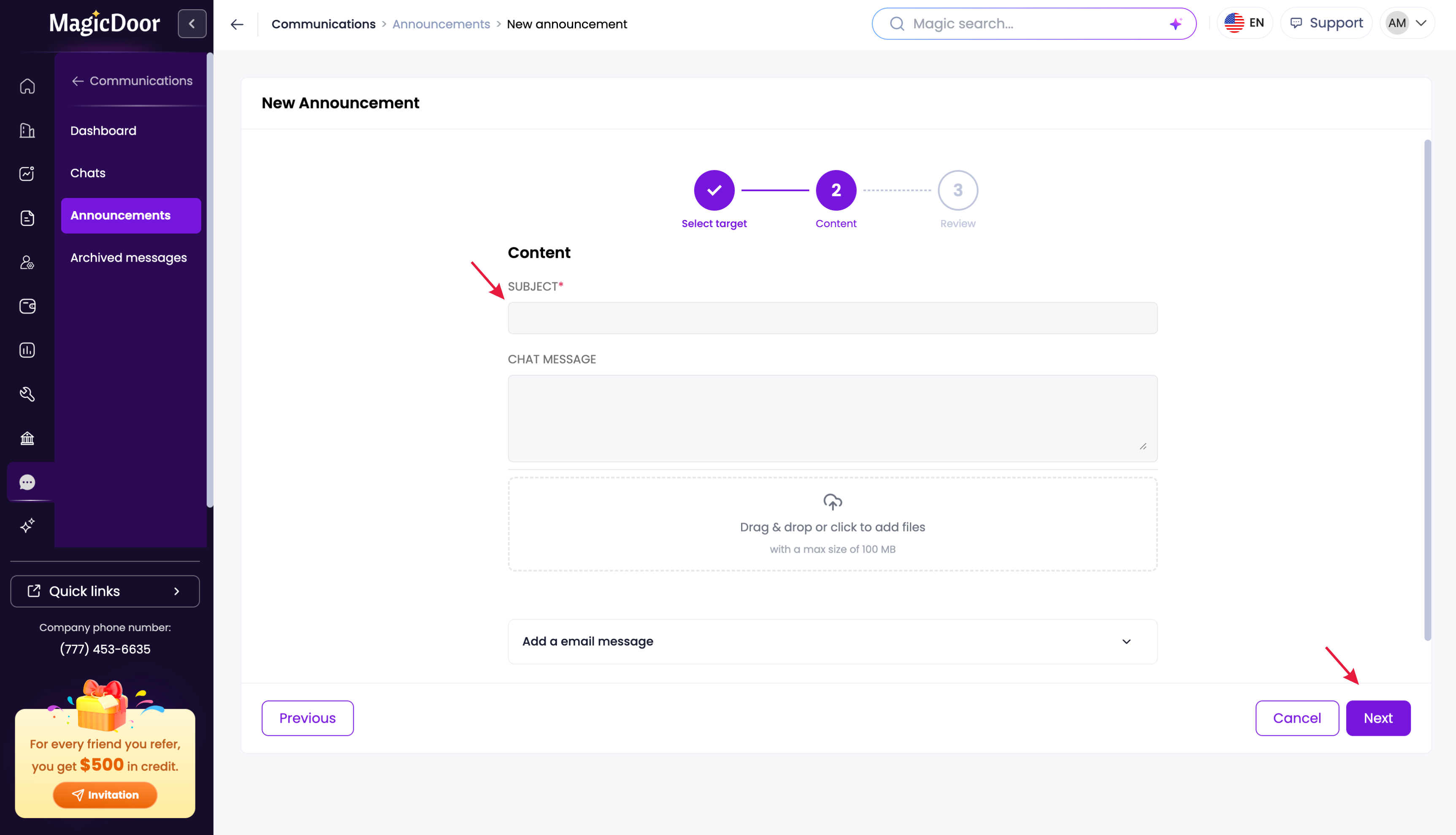
Step 4: Bill the Violation to the Lease
If you need to charge a tenant a fine for a violation, you can create a bill directly linked to the record. Inside the violation details, click Lease Bills in the top navigation bar, then follow these steps:
- Under Chart of Accounts, scroll to Association Fees and select Association Fine.
- Enter the Amount and a Description of the fine.
- Select Property Bill to assign the charge to the tenant.
Click OK to finish. The bill will then be accessible under the lease bills section.
Need More Help?
If you have questions about association violations or billing, our support team is here to help.
👉 Contact us anytime at support@magicdoor.com
📞 Call us at: (888) 887 - 8780 (9:00 AM – 5:00 PM PST)