



This help article explains how to track outstanding tenant balances using the Delinquency Report in MagicDoor.
Inside, you’ll find:
- Where to access the Delinquency Report
- How to view and sort tenant balances
- How to add delinquency notes to leases
- How notes appear directly within the report
Use this article as a reference when monitoring unpaid balances and managing tenant follow-ups.
Step 1: Open the Delinquency Report
The Delinquency Report lives in the Reports section.
- From the left-side navigation, go to Reports
- Scroll to the bottom and select Delinquency Report
This report displays all tenants with outstanding balances in one consolidated view.
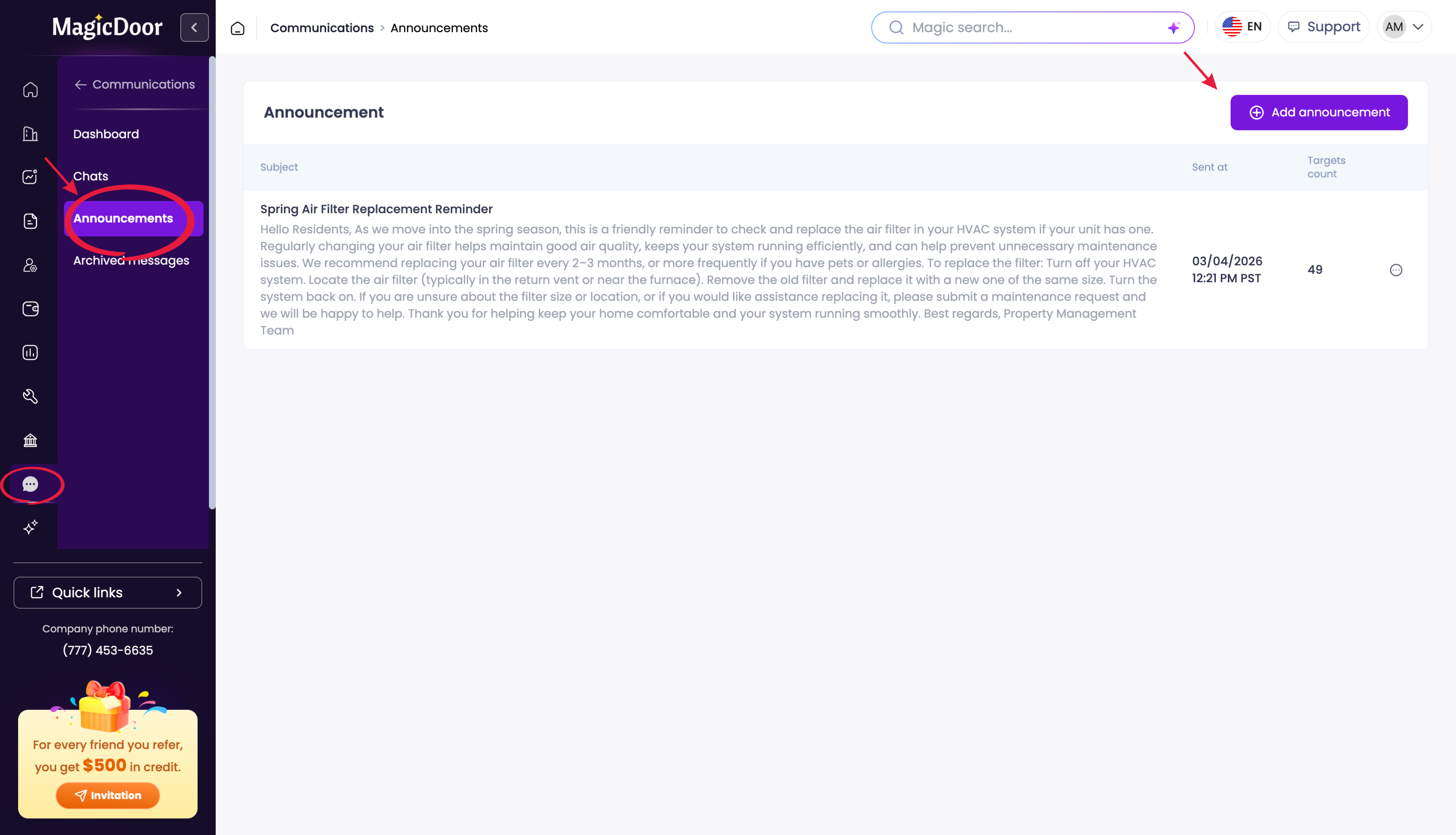
Step 2: Review and Sort Outstanding Balances
Within the Delinquency Report, you can organize the data to fit your workflow.
- View balances by tenant and unit
- Sort by:
- Owner
- Portfolio
- Status
This helps prioritize follow-ups and identify trends quickly.
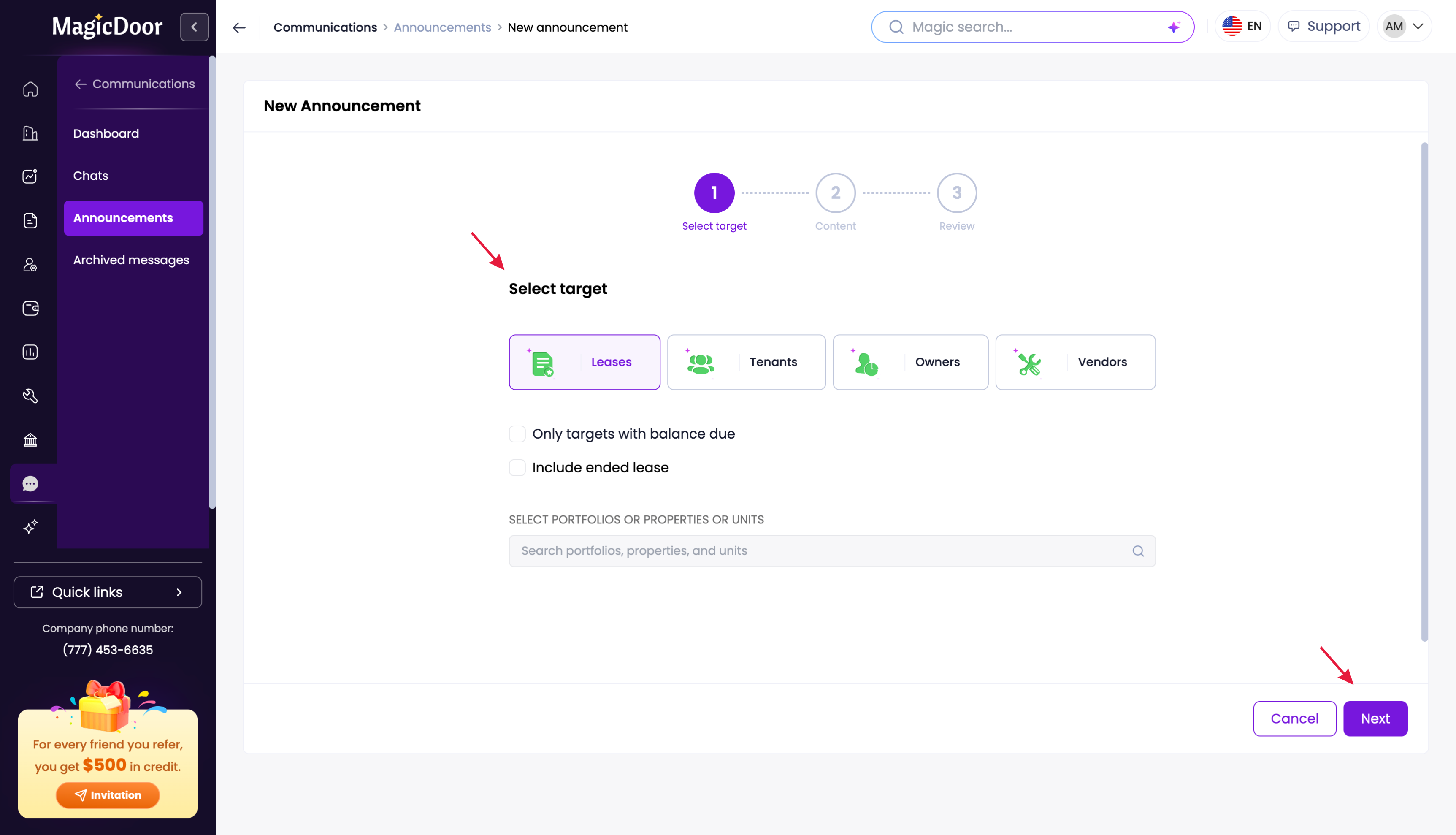
Step 3: Add a Delinquency Note to a Lease
You can add notes directly to a lease and have them appear in the Delinquency Report.
- Search for and open the relevant Unit or Lease
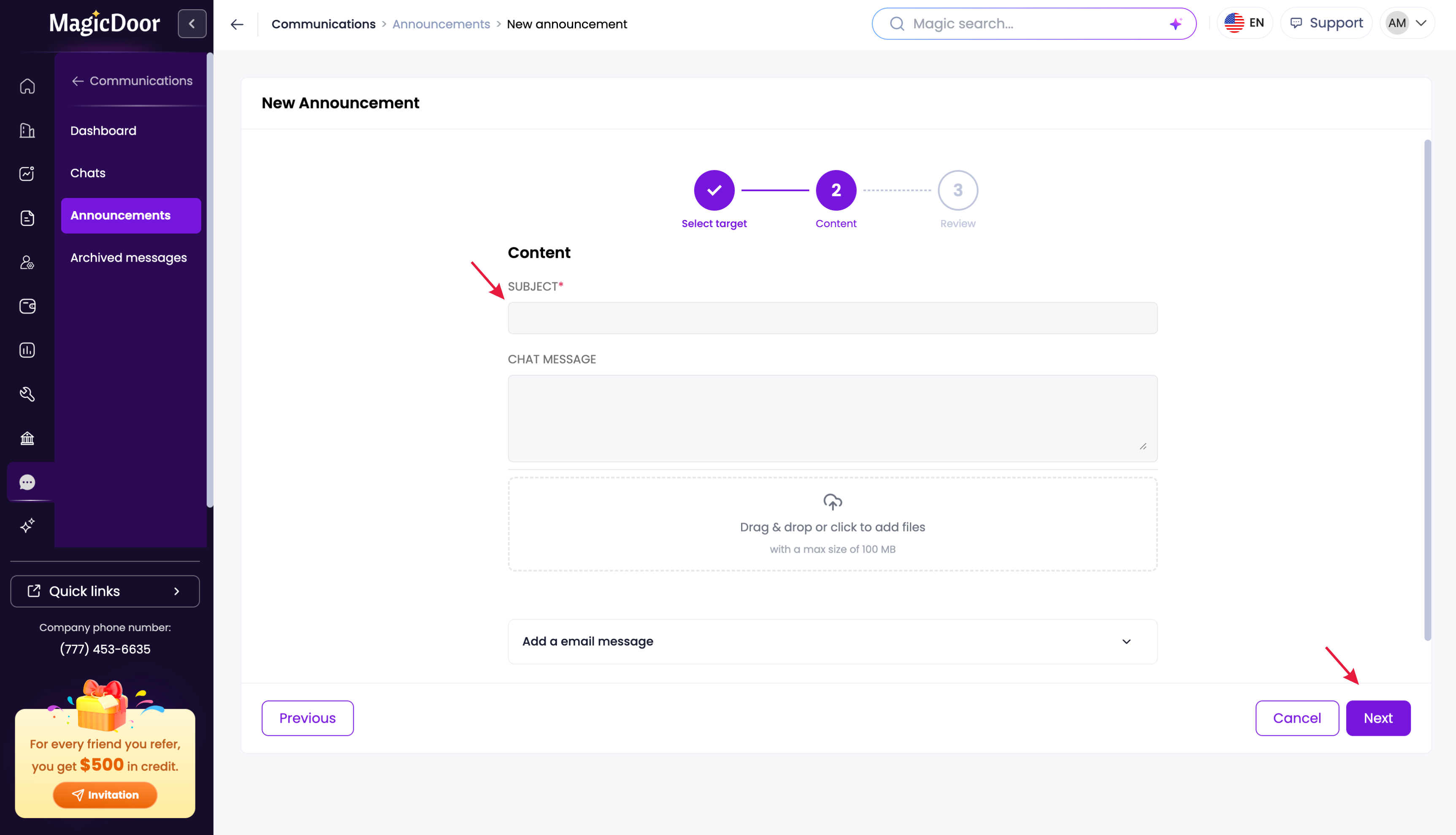
- Scroll to the bottom section and select Notes
- Click Add Note
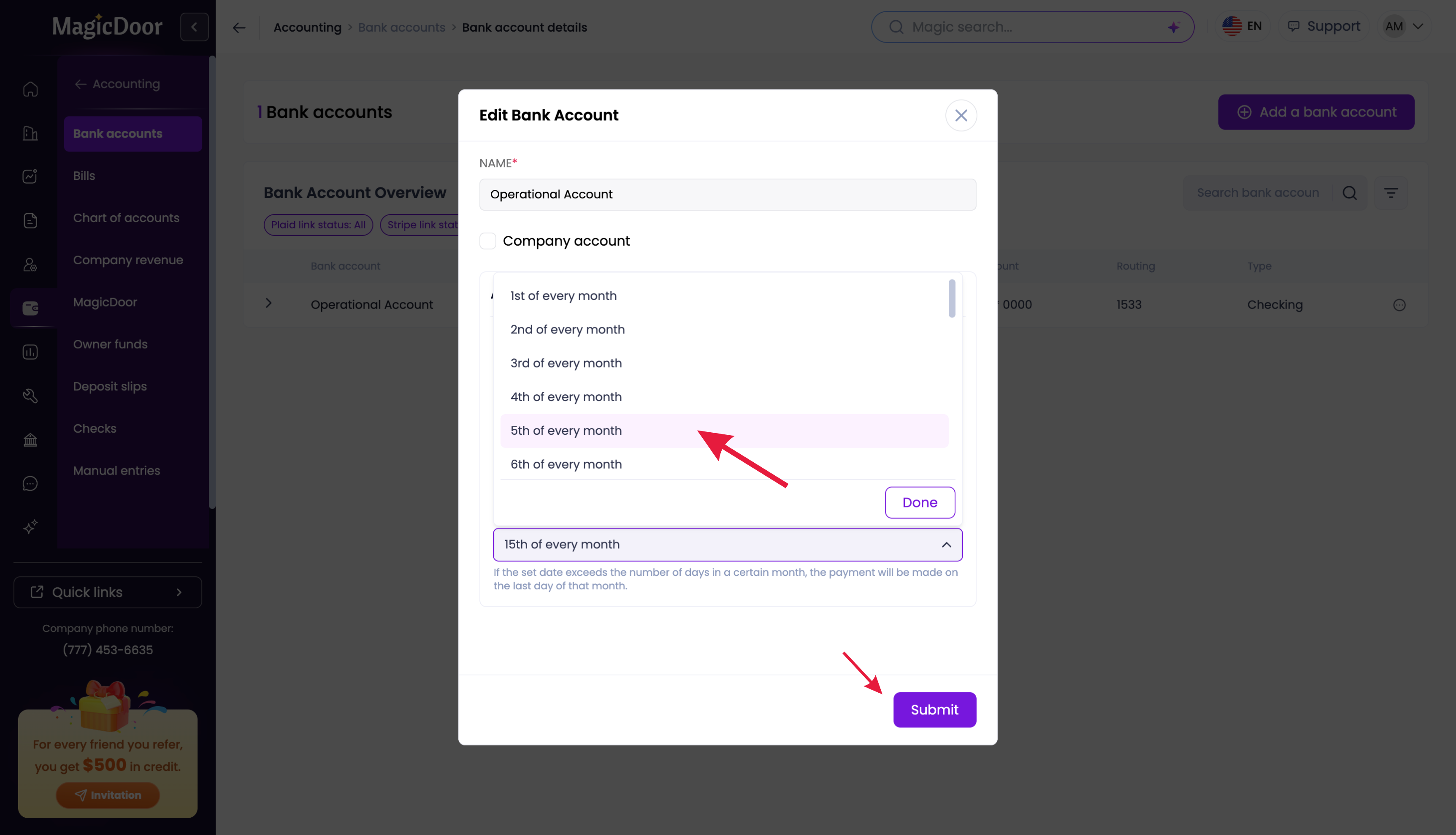
- Set the Note Type to Delinquency
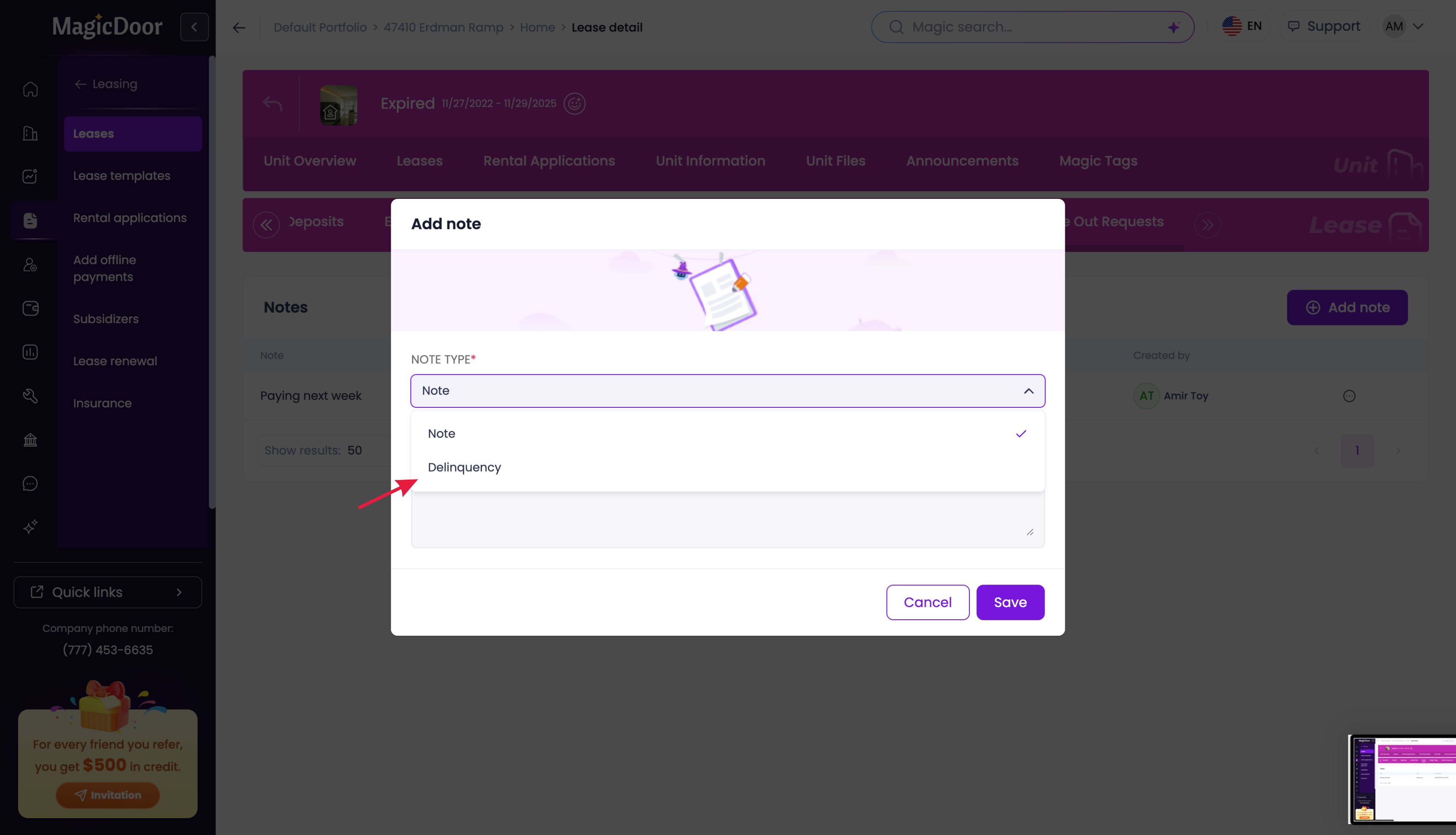
- Enter your note (for example, “Tenant said they will pay next week”)
- Click Save
Step 4: View Notes in the Delinquency Report
Once saved:
- Return to Reports > Delinquency Report
- The delinquency note will appear next to the corresponding tenant or unit
This gives you full visibility into balances and communication history in one place.
Need Help With Reports or Delinquencies?
If you have questions or need help with reporting or tenant balances, our support team is here to help.
👉 Contact us anytime at support@magicdoor.com
📞 Call us at: (888) 887 - 8780 (9:00 AM – 5:00 PM PST)